Lead-capture forms are short questionnaires your chatbot launches inside the chat when it detects certain keywords. They're the most natural way to collect leads, quotes, bookings, or qualified support requests without pulling the visitor out of the conversation. This guide covers how to create them, the available field types, where the responses land, and how to get the most out of them.
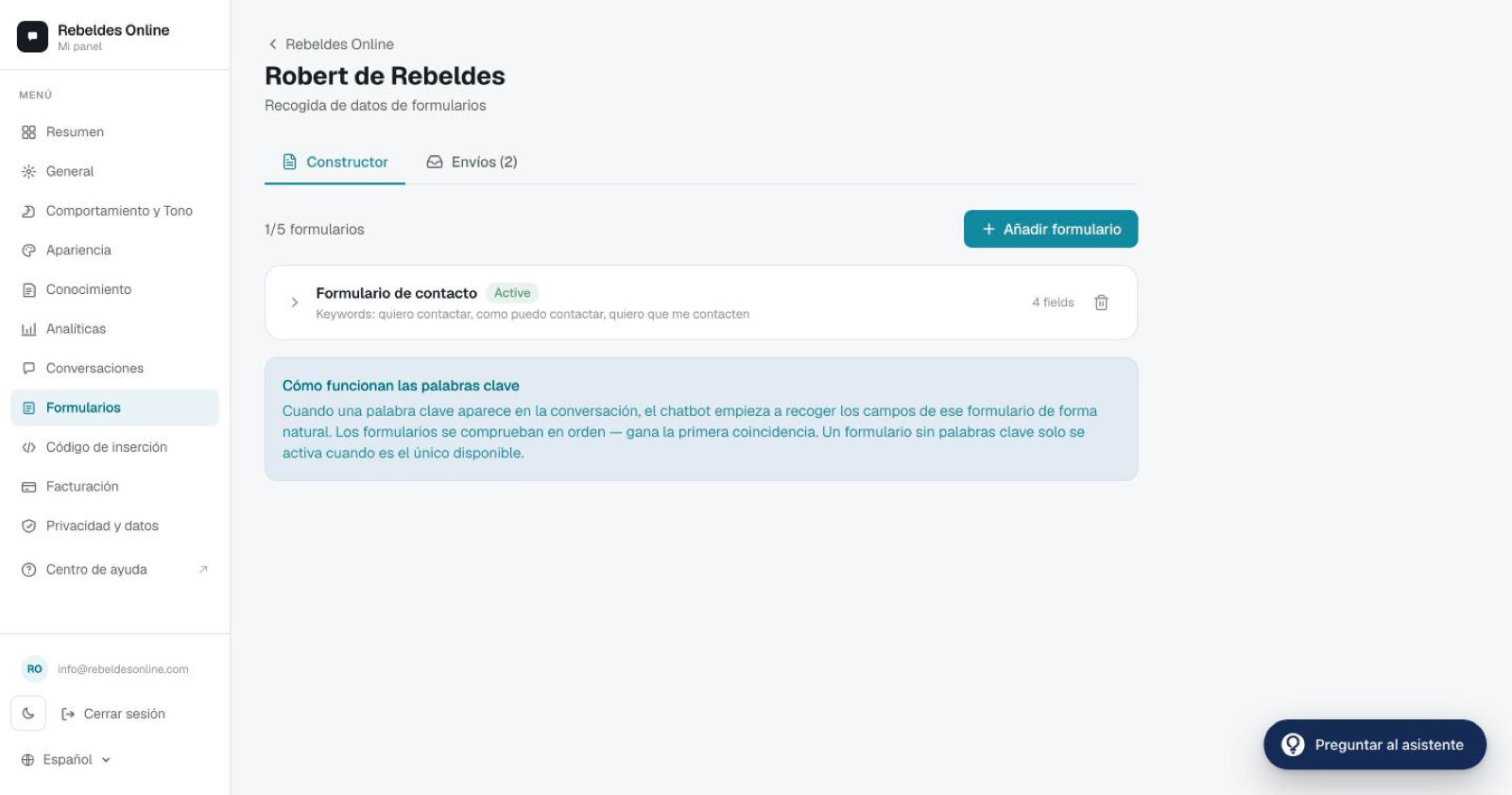
How to create a form
Go to Forms → "New form" and complete the four steps:
- Internal name. Only you see this in the dashboard (e.g. "Web leads"). It never appears in the chat.
- Trigger keywords. Separate them with commas. When the visitor types something that matches, the chatbot launches the form. For example:
quote, pricing, price, want to hire. - Fields. Add the questions you want to collect (see field types below).
- Activate. You can have up to 5 active forms per chatbot.
The chatbot announces the form before showing it, with a message like "I'm going to ask you a few quick questions", so the transition feels natural.
Field types
Each field can be required or optional and can include a placeholder (helper text inside the field).
Where responses land
Every submission reaches you two ways:
- By email. Sent to the address set in Appearance → Notification email. You can list several addresses separated by semicolons (
;). Configure it in Appearance. - Saved in the dashboard. Under Forms → Submissions you can view each response, export them to CSV (available on Pro), and delete them.
Best practices
- Few fields. Between 3 and 5 maximum. Each extra field lowers your response rate.
- Broad keywords. Include synonyms, variants, and common misspellings so you don't miss triggers.
- Give a heads-up. Let the chatbot announce the questions so it doesn't feel intrusive.
- Check your plan limits. On Basic you get 200 submissions per month; on Pro, unlimited. If you exceed 200 on Basic, the forms still appear but submissions are no longer saved until the next cycle. See the details on Pricing.
Use cases
- Lead capture: name, email, company, and "what are you looking for?".
- Booking: name, email, phone, and date.
- Qualified support: email, urgency (select), and description (textarea).
- Restaurant: name, phone, date, and party size.
- Professional service: name, email, budget, and "describe your project".
Need a hand?
If you're unsure how to set up a form or which fields to ask for, open the ChatME Assistant from your dashboard or book a demo and we'll help you build it in minutes.
Ask the ChatME Assistant
It's in your dashboard and knows every step. Or book a demo and we'll set it up with you.
Start free