The ChatME dashboard is where you set up, train and measure your chatbot. Every section has a clear job and a logical order, so this guide walks you through all of them and shows you exactly where to find each setting. If you're starting from scratch, run through Getting started first, then come back here.
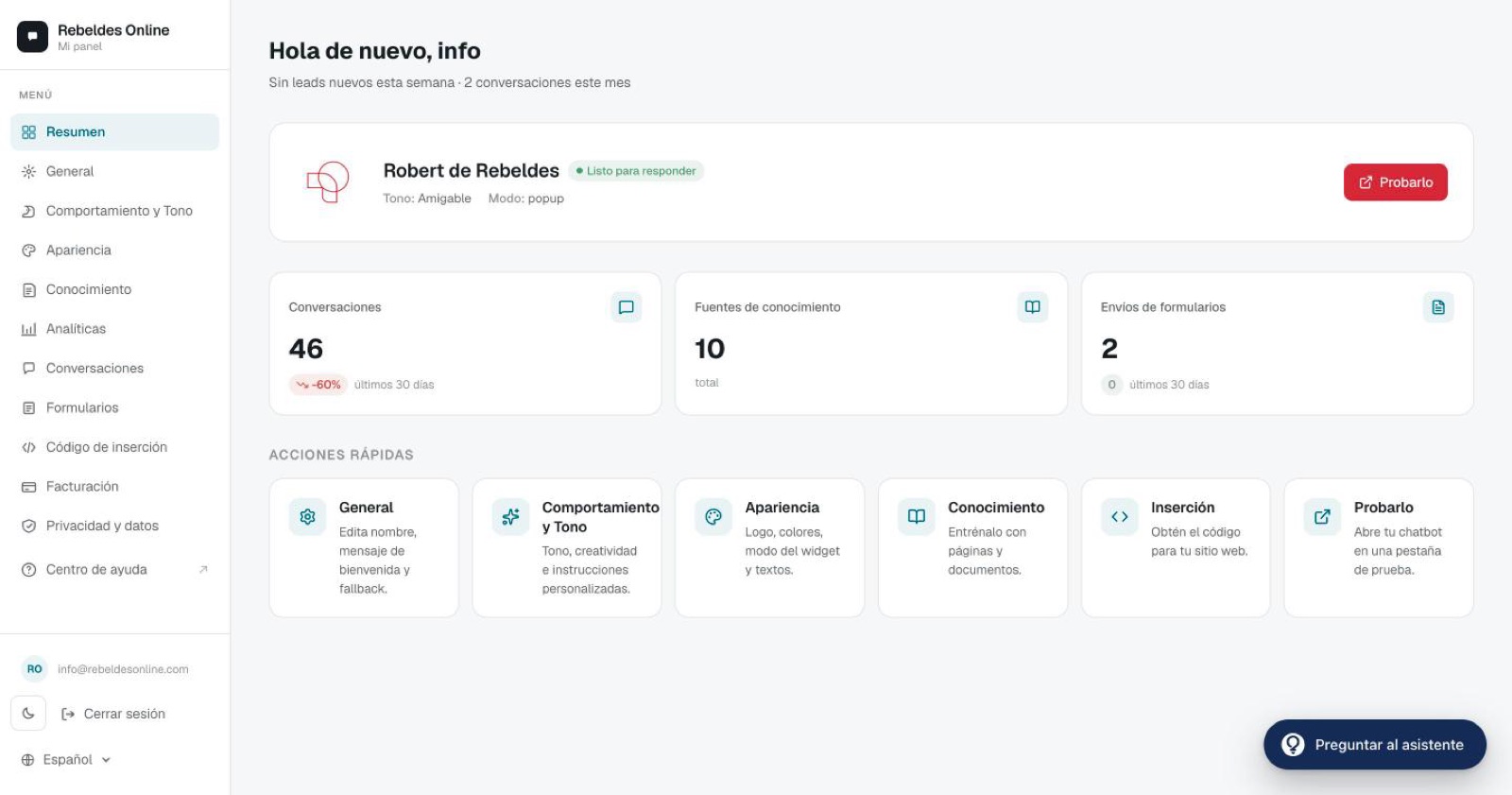
The dashboard sections
The left-hand menu lists every management area. Here's what each one does.
Overview
Your home page. It shows the chatbot's status, three key KPIs (conversations, knowledge sources and form submissions) and shortcuts to the most common tasks. The "Try it" button opens your chatbot in a new tab so you see exactly what a visitor sees.
General
The core identity settings:
- Chatbot name — shown in the header of the chat window.
- Welcome message — the first line a visitor reads when they open the chat.
- Fallback message — what it replies when it can't find an answer in its knowledge.
Behavior & Tone
This is where you shape the chatbot's personality and how it reasons: custom instructions, tone (friendly, formal or technical) and creativity (from 0.1 very precise to 1.0 very creative; for support, the sweet spot is between 0.5 and 0.7). Full details in Behavior & tone.
Appearance
Everything visual: chatbot and launcher icons, popup or inline mode, position, window size, colors, subtitle and placeholder, avatar, auto-open, notification email, time zone and suggested questions. More in Appearance.
Knowledge
Your chatbot's source of truth. You can add web pages (including their subpages) and files (PDF, DOCX, TXT, CSV). Important: the chatbot only answers using this information. Learn how to manage it in The knowledge base.
Analytics
Performance at a glance: conversations per day, messages, forms, CSAT, traffic source and activity peaks. On the Pro plan you also get an AI assistant that answers questions about your metrics in plain language.
Conversations
The full chat history. You can open and read each conversation one by one, and export them to CSV (a Pro feature) to analyze them outside the platform.
Forms
Questionnaires the chatbot launches automatically when it detects certain keywords (a quote request, for example). The data lands in your inbox and is listed here too. Full guide in Forms.
Embed code
The snippet you paste into your site to display the chatbot, with an alternative iframe if you prefer. Step-by-step setup in Install the widget on your site.
Billing
Change plan, download invoices and manage your subscription through the Stripe portal. Everything related in Plans & billing.
A recommended walkthrough
Setting up a chatbot for the first time? This order saves you the back-and-forth:
- General — give it a name and messages.
- Knowledge — add what it needs to know.
- Behavior & Tone — tune how it replies.
- Appearance — match the look to your brand.
- Embed code — install it on your site.
- Analytics & Conversations — measure and refine over time.
Want a hand getting started?
Open the ChatME Assistant right inside the dashboard and ask it anything about these sections — it guides you in real time. And if you'd rather we show you live, book a demo and we'll go through it together.
Ask the ChatME Assistant
It's in your dashboard and knows every step. Or book a demo and we'll set it up with you.
Start free