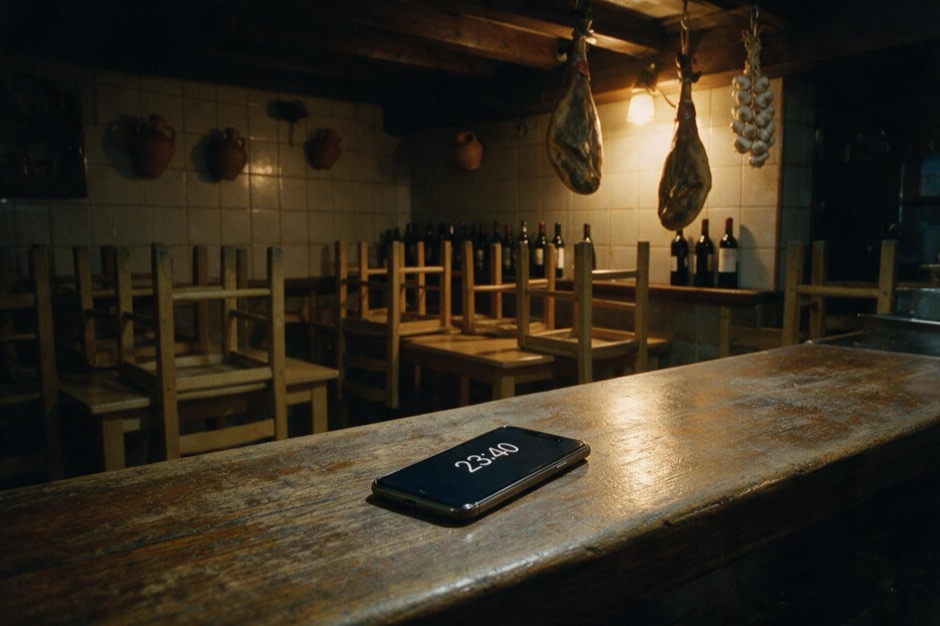
Closed for the holidays: tell your customers from your phone
You're closing for a few days: a holiday, a bank holiday, a staff break or Christmas hours. The five places to announce it, what to write, and how to tell your assistant once, from your phone.
ChatME··13 min read
You're closing for a few days: a holiday, a bank holiday, a staff break, or shorter hours over Christmas. You tape a "closed for the holidays" sign to the door and leave. But the door only tells the people who have already walked up to it. Anyone who looks you up on Google Maps, messages you on WhatsApp or asks the chat on your website still gets your usual hours, unless you change them yourself, place by place.
This guide covers the five places customers find out you're closed, what happens in each if you forget, and wording you can copy. We checked the Google, WhatsApp Business and Instagram steps against each company's own help pages on 13 November 2026, and every one is linked.
Where to announce a closure: the five places
A closure of a few days has to be announced in five places, and each one is changed separately: the door, your Google listing, WhatsApp Business, Instagram and the chat on your website.
Place
What you change
What it takes
The door
A sign with the dates and the day you're back
A sheet of paper and tape
Google Maps and Search
"Special hours" on your Business Profile
6 steps
WhatsApp Business
The "Away message", on a "Custom schedule"
5 or 6 steps
Instagram
A post with the dates, pinned to your profile
3 steps to pin it
Your website chat
What your assistant answers
With ChatME, one message and one tap
The sign on the door: what to write
A closure sign says three things: that you're closed, from when until when, and the day you're back. If you want people to keep finding you, add where to write to you.
If you forget, the customer finds out standing in front of a closed shutter, with no idea whether it's for a day, a month or for good.
Four signs you can copy (change the dates):
Closed for the holidays from 3 to 17 August, both days included. We're back on 18 August with our usual hours. Thank you, and have a great summer!
Closed for a staff break on Monday 7 and Tuesday 8. We open again on Wednesday 9 at the usual time.
Closed for the bank holiday on 8 December. We open on the 9th with our usual hours.
Christmas opening hours. 24 and 31 December: 9:00 to 14:00. 25 December and 1 January: closed. All other days, usual hours.
Google Maps: special hours on your Business Profile
On Google you don't change your regular hours: you add special hours for those dates, and the regular ones stay as they are. According to Google's help, this is how:
Go to your Business Profile.
Select Edit profile, then Hours.
In the "Business hours" section, next to "Special hours", select Edit.
Select Add a date and enter the day.
If you're closed that day, make sure the Closed box is checked. If you're open with different hours, uncheck it and enter your opening and closing times.
Select Save.
That's also how you set Christmas opening hours: the 24th and the 31st with different times, and the 25th with the "Closed" box checked.
If you forget, your listing keeps showing a normal week's hours on those days.
Three details from Google's help that are worth knowing:
Longer closures. The page on marking a business as closed points to special hours for closures of 7 days or less, and to "Temporarily closed" for more than 7 days, the off-season or a closure with no return date. The special-hours page says something different about exactly one week: there, 7 or more days in a row already counts as temporarily closed. For exactly seven days, Google's two pages don't agree.
Public holidays. Google explains on its page about holidays that, on the holidays it lists for each country, your listing may show a warning that your hours might differ. For Spain the list includes 6, 8 and 25 December, and 1 and 6 January, among others. On its special-hours page, Google also suggests confirming your hours on official holidays even when you open as usual, so customers know they're accurate.
Making it show. For special hours to appear on your listing, your business hours need to be set to "Open with main hours".
WhatsApp Business: the auto-reply is called an "away message"
In the WhatsApp Business app, the automatic reply for when you're not there is called an away message: whoever writes to you gets a text you prepared in advance. According to WhatsApp's help, you set it up like this:
From the Tools tab, tap Away message.
Turn on Send away message.
Tap the message to edit it, write your own and confirm with OK (on iPhone, Save).
Tap Schedule and choose when it's sent: "Always send", "Custom schedule" (only during the period you specify) or "Outside of business hours" (only available if you've set business hours in your business profile).
Tap Recipients and choose who gets it: "Everyone", "Everyone not in address book", "Everyone except…" or "Only send to…".
On Android, tap Save.
For a closure with dates, the option that fits is "Custom schedule": the message is only sent during the period you set. "Always send" sends it at all times, so it's on you to turn it off when you're back.
One limit WhatsApp's own help points out: your phone needs an active internet connection to send away messages. If you go on holiday and switch the business phone off, they aren't sent.
If you forget, anyone who writes on those days hears nothing until you're back.
Two messages you can copy:
Hello! Thanks for getting in touch. We're closed for the holidays from 3 to 17 August and back on the 18th. We'll read your message when we return. If it's about a booking from the 18th onwards, tell us the day, the time and how many of you there are.
Hello! We have Christmas opening hours these days: on the 24th and the 31st we open from 9:00 to 14:00, and on 25 December and 1 January we're closed. We'll reply as soon as we open.
Instagram: a pinned post beats a story
On Instagram, a simple way to announce it is to post the dates and pin that post to the top of your profile. According to Instagram's help:
Go to your profile.
Tap the post, then Options in the top right.
Tap Pin to main grid.
You can pin up to three posts, and you do it from the app: Instagram says this feature isn't available on computers. When you're back, repeat the steps and tap Unpin from main grid.
What about a story? It works for the same day, but Instagram's help explains that a story disappears from your profile after 24 hours unless you add it as a highlight. For a week-long closure, a story on its own isn't enough.
If you forget, anyone who checks your profile to see whether you're open finds nothing, and anyone who asks by direct message is left waiting.
A caption you can copy:
We're closed for the holidays from 3 to 17 August. Back on the 18th with our usual hours. If you write to us in the meantime, we'll reply when we return. Thank you!
Your website chat: your assistant needs telling too
A chat with an assistant answers with what you taught it: your usual hours. If you don't tell it you're closing, anyone who asks "are you open on Friday?" gets your regular hours, instantly and at any time of day.
It's the other side of messages that arrive after hours: there, the assistant answers while you're away; here, it needs to know you're going to be away. And if the same assistant also answers on WhatsApp or Instagram, the slip is repeated on every channel.
This is the part we can speak about first-hand, because it's what we built.
With ChatME you tell it once, from a chat on your phone
With ChatME you don't open the dashboard to announce a closure: you write it to your assistant in a Telegram chat, in your own words, and what you apply holds on every channel it answers on. It's called "Your assistant on your phone", and it works like this:
You tell it. You type, for example: "We're closed from 24 to 26 December".
It shows you a proposal. A message titled "Closure" that says what it will do: closed from Thursday 24 to Saturday 26 December, inclusive; it will say you're closed; and it ends automatically on Sunday 27 December. Underneath, three buttons: Apply, Change and Discard.
You decide. Nothing changes until you tap Apply. Then it replies: "Done. Notice saved: from Thursday 24 to Saturday 26 December. It applies on all your channels", with an Undo button.
On those days your assistant says the business is closed on your website chat and on the channels you have connected: WhatsApp, Instagram, Messenger and Telegram, which are available from the Pro plan (see pricing). When the dates pass, the closure comes off by itself: you don't have to remember to undo it.
The same goes for other changes:
Special hours. "On the 31st we only open at lunchtime": on those days it gives those hours instead of the usual ones.
A change of plan. "In the end we do open on the 24th": it prepares a proposal that replaces the earlier one.
No end date. If you don't say until when, the proposal tells you what it chose: that day only, for a closure or special hours.
With a phone number or a link. If your notice includes a phone number, an email, a link or a payment method, the proposal points it out and asks for a second tap: Yes, apply.
/changes shows you what it has active, with a button to remove each item. Proposals expire after 24 hours.
To get started, link your Telegram from your dashboard, under Account → On your phone. The step-by-step guide covers all of it. You need a Basic, Pro or E-commerce plan and Telegram on your phone.
What ChatME doesn't change for you
Telling your assistant takes care of what it answers. The rest of the list is still yours:
It doesn't change your Google listing, post anything on your Instagram or put up the sign. You set Google's special hours yourself, with the steps above.
It doesn't close your booking system. It doesn't create, move or cancel bookings, or change availability in Restoo, Let's Book, Jobber or your calendar: if you close for a few days, you close them there yourself. If you have one connected, the closure proposal itself tells you so.
It doesn't change your regular hours, the ones set in your dashboard. A closure is an exception with an end date.
The chat with you runs on Telegram. It doesn't work on WhatsApp today. What you apply, your assistant does say on WhatsApp, if you have it connected.
It isn't the Telegram channel for your customers. It's a chat between you and your assistant.
It doesn't read photos. Sending it a picture of the sign won't work: type it.
Before you close: the full checklist
Put up the sign with the dates and the day you're back.
Add special hours to your Google Business Profile, or "Temporarily closed" if you're closing for more than a week.
Schedule the WhatsApp Business away message on a "Custom schedule".
Post the dates on Instagram and pin the post.
Tell the assistant on your website. With ChatME: one message on Telegram and Apply.
If you use a booking system, close those days there too.
And when you're back, this is what comes off by itself and what you take down:
Place
When you're back
The door
You take the sign down
Google Maps and Search
With special hours, nothing: they only show on the days you set. If you marked "Temporarily closed", you reopen it yourself: Edit profile → Hours → Edit → "Open with main hours"
WhatsApp Business
Nothing if you chose "Custom schedule"; on "Always send", you turn it off yourself
Instagram
You unpin the post
Your ChatME assistant
Nothing: the closure comes off by itself when the dates pass
Frequently asked questions
What should a "closed for a staff break" sign say?
The dates and the day you're back. For example: "Closed for a staff break on Monday 7 and Tuesday 8. We open again on Wednesday 9 at the usual time." If you like, add where people can write to you in the meantime.
How do I show "closed for the holidays" on Google Maps?
With special hours on your Business Profile: Edit profile, Hours, "Special hours", add the date and make sure the "Closed" box is checked. If you're closing for more than 7 days, Google points to the "Temporarily closed" option.
What's the difference between special hours and "Temporarily closed" on Google?
Special hours change the hours for specific dates without touching your regular ones. "Temporarily closed" marks the whole listing as closed, and Google points to it for more than 7 days, the off-season or a closure with no return date.
Does the WhatsApp Business away message turn itself off?
It depends on how you schedule it. On a "Custom schedule" it's only sent during the period you set; on "Always send" it's sent at all times, until you turn it off. Either way, the phone needs an internet connection.
Do I need to confirm my hours on a public holiday if I open as usual?
On Google, it's worth it. Its help suggests confirming your hours on official holidays even when they're your regular ones, so customers know they're accurate. On the holidays it lists, your listing may also show a warning that your hours might differ.
Can I tell my ChatME assistant over WhatsApp?
Not today: the chat with you runs on Telegram. What you apply from that chat, your assistant does say on WhatsApp, if you have it connected, just as on your website chat, Instagram, Messenger and Telegram.
So they find out before they come
Closing for a few days doesn't have to cost you customers: they only need to find out before they turn up at your door. The door, Google, WhatsApp and Instagram are changed by hand, with the steps in this guide. What your assistant answers takes one message from your phone.
"Your assistant on your phone" is on the Basic, Pro and E-commerce plans: you can start a 14-day Basic trial —nothing charged today, card required— and link your Telegram from your dashboard.
START TODAY
Ten minutes. Try it for 14 days.
Included from the Basic plan. A 14-day trial (one per account, card required): cancel before it ends and you’re not charged.