Lead-capture forms are short questionnaires your assistant launches inside the chat when it detects certain keywords. They're the most natural way to collect leads, quotes, bookings, or qualified support requests without pulling the visitor out of the conversation. This guide covers how to create them, the available field types, where the responses land, and how to get the most out of them.
How to create a form
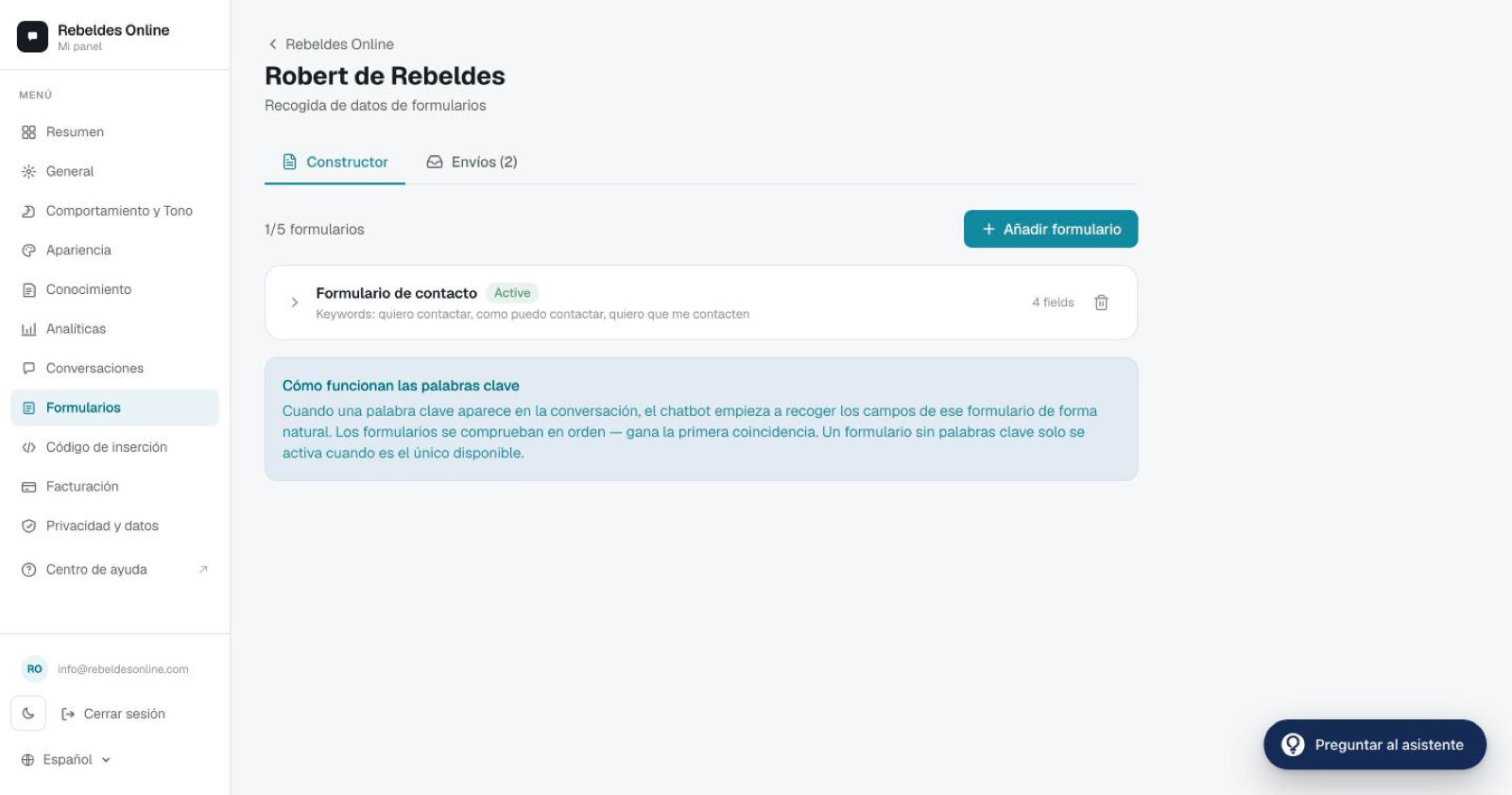
Go to Forms. If you don't have one yet, the page offers you the templates straight away; if you already have some, press "New form". You can start from a template or from scratch:
- Group bookings: name, phone, date, time, number of people and comments.
- Request an appointment: name, phone, email (optional), service, preferred day and time and notes (optional). It's triggered by phrases like "book an appointment" or "make an appointment" (not by "appointment" alone, which also sits inside "disappointment"). You get the request and confirm the appointment with them.
- Contact / quote: name, phone, email, what they need and best time to call.
- Events & catering: name, phone, email, type of event, event date, number of guests and details.
- Job application: full name, phone, email, position, availability and experience.
- Start from scratch: an empty form where you add the fields yourself.
Each template comes with its fields and keywords. The new form opens in the editor unsaved: review it, change what you like and press Save changes in the bar at the bottom. Until you save it, it doesn't exist yet: the assistant doesn't use it and it doesn't count towards your limit of 5 forms. If you press Discard, pick another form or leave the page without saving it, it's gone. If something is missing in a field when you save, the bar tells you which one and the editor opens that field so you can fix it. What the customer sends is always a request: it comes to you and you confirm it.
In each form you can set four things:
- Internal name. Only you see this in the dashboard (e.g. "Web leads"). It never appears in the chat.
- Trigger keywords. Separate them with commas. When any of these words or phrases comes up in the conversation, the assistant starts asking for the form's details. For example:
a quote, can you quote, want to hire. - Fields. Add the questions you want to collect (see field types below).
- Activate. You can have up to 5 forms per assistant (switched on or off); the switch decides which ones it uses.
The assistant announces the form before showing it, with a message like "I'm going to ask you a few quick questions", so the transition feels natural.
Field types
Each field can be required or optional and can include a placeholder (helper text inside the field).
Where responses land
Every submission reaches you two ways:
- By email. Sent to the address set in Forms → Notification emails, in this same section of the dashboard. You can list several addresses separated by semicolons (
;); that card has its own Save button. The email carries the details the customer filled in; you read the conversation itself under Conversations. - Saved in the dashboard. Under Forms → Submissions you can view each response, export them to CSV (available on Pro), and delete them.
The assistant asks for each form once per conversation: once the customer has sent it, it doesn't ask for it again in that chat. The exception is appointment forms: one named Request an appointment (like the template), or one whose keywords include "appointment" or one of the template's phrases, such as "book an appointment" or "make an appointment". It has to be the whole keyword: "book appointment" isn't enough; on the other hand, a contact form with "book an appointment" among its keywords does count as an appointment form. On WhatsApp, Instagram, Messenger and Telegram the conversation with a customer never closes, so 7 days after it was last sent the assistant can ask for it again for a new appointment. The same goes for a form with no keywords when it's the only one switched on in your assistant. With Jobber connected, forms aren't used: requests go into your Jobber.
Would you rather have the appointment confirmed on the spot? Below Notification emails there's a card that takes you to Integrations → Google Calendar (Basic plan and up): there you connect your calendar and turn on The assistant books into your calendar, and the assistant checks the time the customer asks for, books it into your Google Calendar and confirms it in the chat. If you turn it on, turn your Request an appointment form off so each appointment reaches you one way only. Step by step in Bookings with Google Calendar.
Best practices
- Only the fields you really need. The templates have between 5 and 7, and the assistant asks for them in small groups (two or three at a time). Every extra field makes the conversation longer.
- Broad keywords. Include synonyms, variants, and common misspellings so you don't miss triggers.
- But not very common single words. Keywords are matched across the whole conversation, including the assistant's own replies. A word like "people", "job" or "price" shows up in unrelated questions ("a table for 2 people", "what's the price of the set menu?") and would open the form at the wrong moment. Use phrases like "we're a group", "large table" or "looking for a job".
- Give a heads-up. Let the assistant announce the questions so it doesn't feel intrusive.
- Check your plan limits. On Free you get 10 submissions a month and on Basic 200; on Pro and E-commerce they are unlimited. We warn you as you reach the limit and submissions keep being saved: they only stop above 120 % (12 on Free, 240 on Basic), and the assistant carries on chatting as normal. See the details on Pricing.
Use cases
- Lead capture: name, email, company, and "what are you looking for?".
- Appointment: the Request an appointment template (name, phone, service and preferred day and time). It's a request: you confirm it.
- Qualified support: email, urgency (select), and description (textarea).
- Restaurant: name, phone, date, and party size.
- Professional service: name, email, budget, and "describe your project".
Need a hand?
If you're unsure how to set up a form or which fields to ask for, open the ChatME Assistant from your dashboard or book a demo and we'll help you build it in minutes.
Ask the ChatME Assistant
It's in your dashboard and knows every step. Or book a demo and we'll set it up with you.