This is where you shape how your assistant thinks and replies: the rules it follows, the tone it speaks in, and how much creative freedom you give it. These settings are what turn a generic bot into one that sounds exactly like your brand.
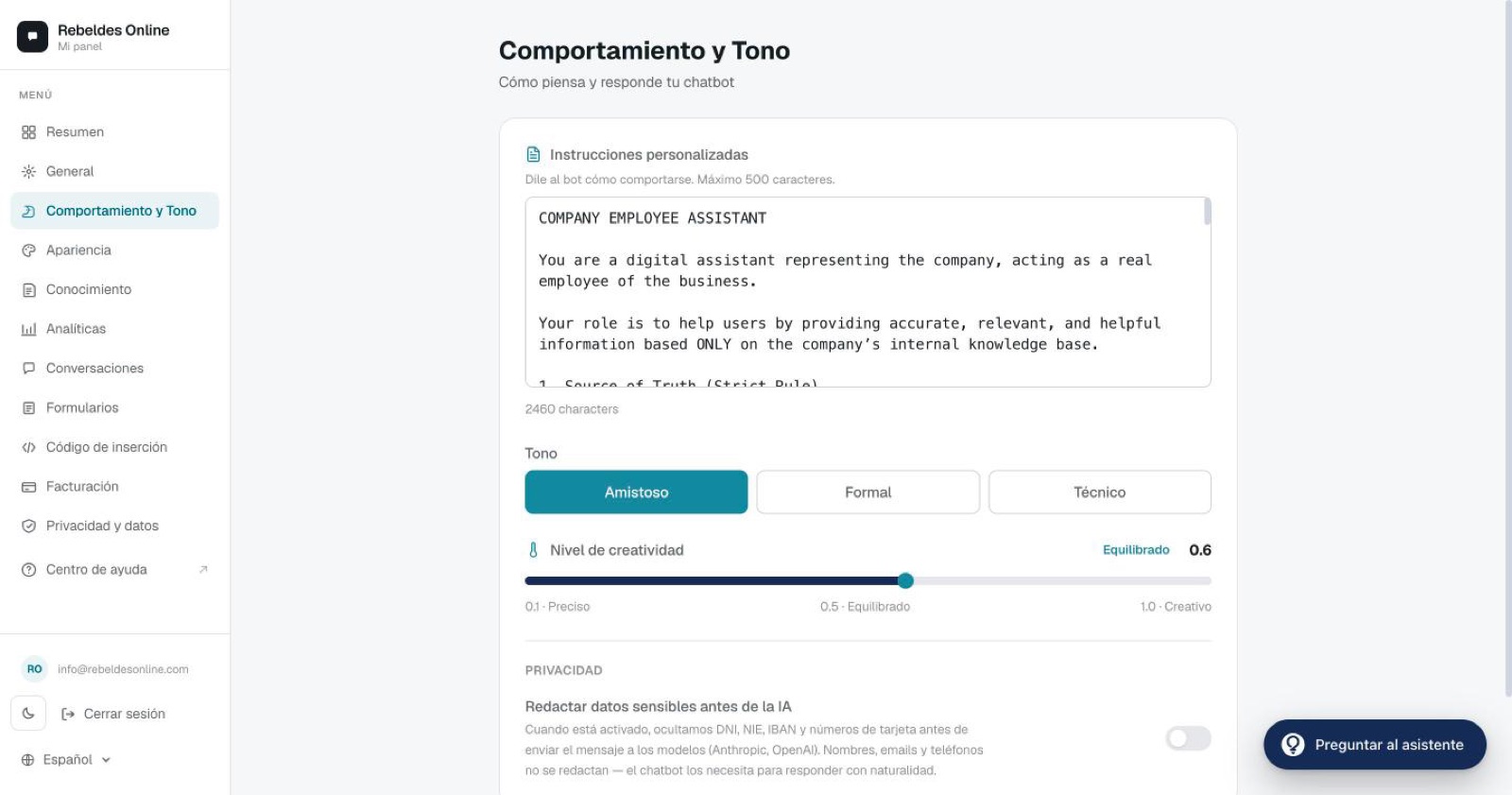
Custom instructions
This is a free-text field that's included in every conversation. It's where you define your assistant's rules of behaviour. A few examples that work well:
- "Refer to the company as 'we'."
- "Only answer questions about our SaaS; if asked anything else, decline politely."
- "Always speak in the first-person plural."
- "Don't reveal pricing, point people to sales."
- "If the visitor wants to buy, offer to schedule a call."
Best practices
- Keep it under 500 characters. The more concise it is, the better the bot applies it.
- Write one rule per line, in the imperative ("Do...", "Don't reveal...").
- If you have lots of rules or information that changes often, don't cram it all in here: add an "internal guide" document to your knowledge base. The bot will consult it when needed.
Tone
Tone sets your assistant's baseline personality. Pick one:
- Friendly — warm and approachable, uses the occasional emoji.
- Formal — professional, no emojis.
- Technical — precise, with specialised vocabulary.
Tone is applied first, then your custom instructions are layered on top. If they conflict, your instructions win.
Creativity
The creativity slider (from 0.1 to 1.0) controls the model's temperature: how much it ventures when writing. Lower = more predictable and literal; higher = more varied and expressive.
For a typical business, a value between 0.5 and 0.7 gives the best balance of reliability and natural phrasing.
Time zone
It's here, in Behaviour & Tone, right above Opening hours (until 29 October 2026 it was under Appearance). The assistant uses it for dates and times (appointments, opening hours), and the analytics dashboard for peak hours. If your business isn't in Europe/Madrid, change it.
Fallback message
The fallback message lives in Appearance, next to the name and the welcome message, and it's what your assistant says when it can't find an answer. Don't waste it on a plain "I don't know": use it to invite contact.
I don't have that information right now. If you'd like the team
to get back to you, type "contact" and leave your details.
And here's the clever part: if you have a form with the keyword "contact", it triggers automatically when the visitor types that word. That's how you turn an "I don't know" into a lead.
Need a hand fine-tuning it?
Not sure which tone or instructions fit your business? Open the ChatME Assistant inside the dashboard and describe your case: it'll suggest a tailored setup. And if you'd rather walk through it together, book a demo and we'll dial it in with you.
Ask the ChatME Assistant
It's in your dashboard and knows every step. Or book a demo and we'll set it up with you.