The knowledge base is, quite literally, what your assistant knows. It only answers using the information you add here; when it can't find an answer, it falls back to the fallback message. That's why the quality of your replies depends directly on what you load into this section.
How to add information
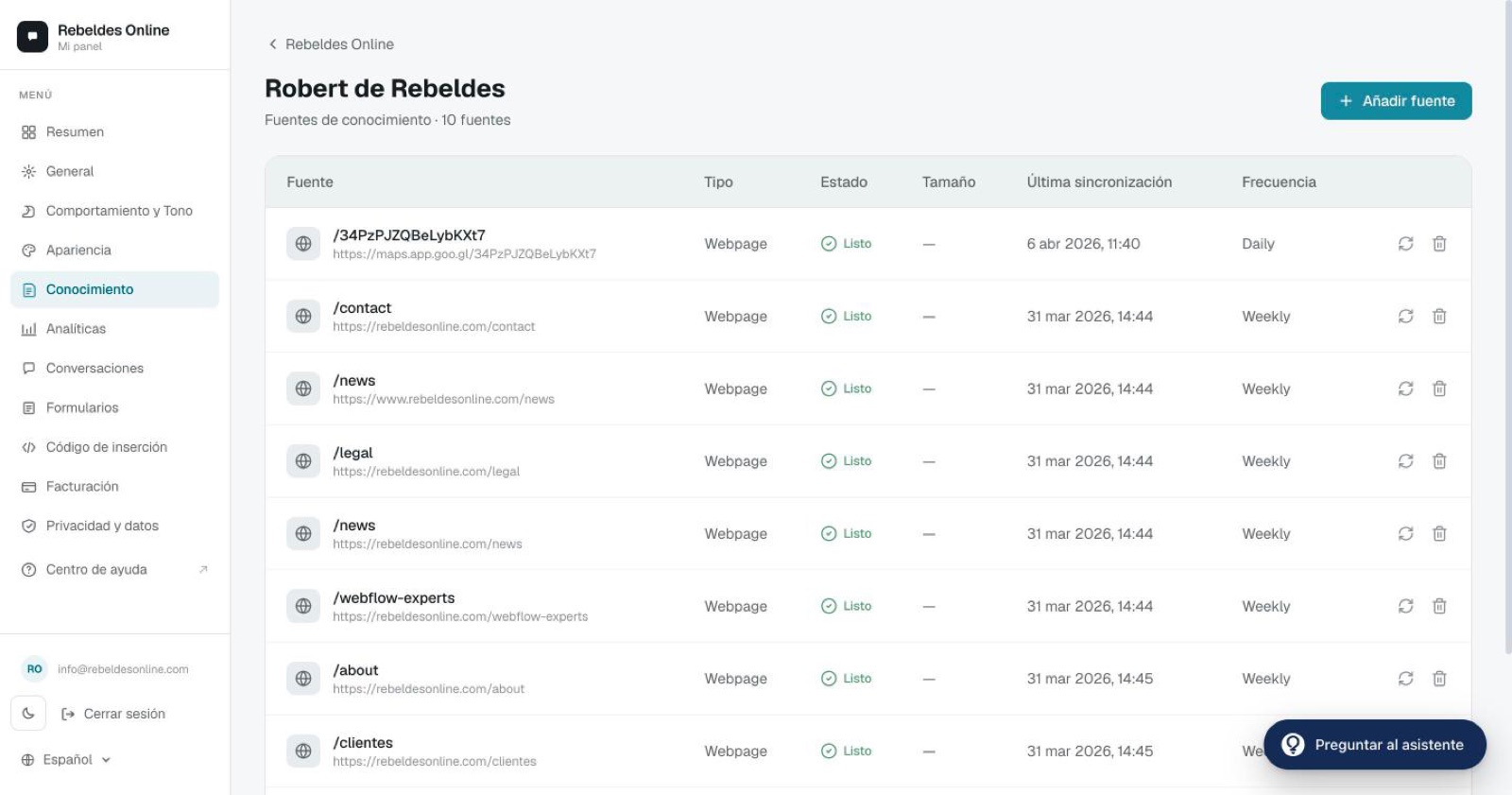
In the dashboard, go to Knowledge → "Add source". You have two options.
Every page or document you add counts as one training source: your plan includes 20 on the free plan, 200 on Basic and unlimited on Pro and E-commerce. The list header shows how many you have left.
Option 1 — Web page
Paste the full URL of the page. The system downloads it, cleans it up (stripping out menus, footers, scripts and other noise) and splits it into chunks the assistant can search. To load several pages at once, use "Find subpages" and they'll all be added together.
Option 2 — File
Upload a file in PDF, DOCX, TXT or CSV format (maximum 2 MB). If your PDF is very large, export it to plain text before uploading: it processes more cleanly and faster.
Syncing web sources
Web sources can be kept up to date in two ways:
- Manual — you re-sync whenever you want.
- Automatic — the assistant re-trains itself. Weekly or monthly on any plan, the free one included; daily from the Basic plan.
If you update the content on your website, remember to re-sync so the assistant works from the new version.
Tips for a solid knowledge base
- Be specific. A page dedicated to one topic answers better than a long page that mixes several.
- Use natural language. If your site is very technical, add an FAQ document written the way a customer would actually ask.
- Cut what doesn't help. Long legal text or repeated content only adds noise.
- Languages. The assistant detects the visitor's language automatically; if you serve several, add knowledge in each one.
- Don't overload it. 20–50 focused pages or documents perform far better than 500 scattered ones.
Source statuses
Each source shows its status while it's processed:
The usual causes of Error are: an unreachable URL, a corrupted file or a password-protected PDF.
Deleting sources
Open the source's "···" menu and click Delete. This also removes its chunks, so the assistant stops using that information immediately.
FAQ
Will the assistant make up answers if it doesn't know everything? No. If it can't find the information, it uses the fallback message instead of improvising. More in Frequently asked questions.
How long until a source is ready? It depends on the size of the source, but it's usually a matter of seconds to a couple of minutes. The status moves from Processing to Ready when it's done.
Can I mix web pages and files? Yes. Combine whatever sources you need; they all feed the same assistant.
Stuck with your knowledge base?
Ask the ChatME Assistant from the dashboard which sources to add or why one is throwing an error — it answers on the spot. And if you'd like us to review your case with you, book a demo.
Ask the ChatME Assistant
It's in your dashboard and knows every step. Or book a demo and we'll set it up with you.