The ChatME dashboard is where you set up, train and measure your assistant. Every section has a clear job and a logical order, so this guide walks you through all of them and shows you exactly where to find each setting. If you're starting from scratch, run through Getting started first, then come back here.
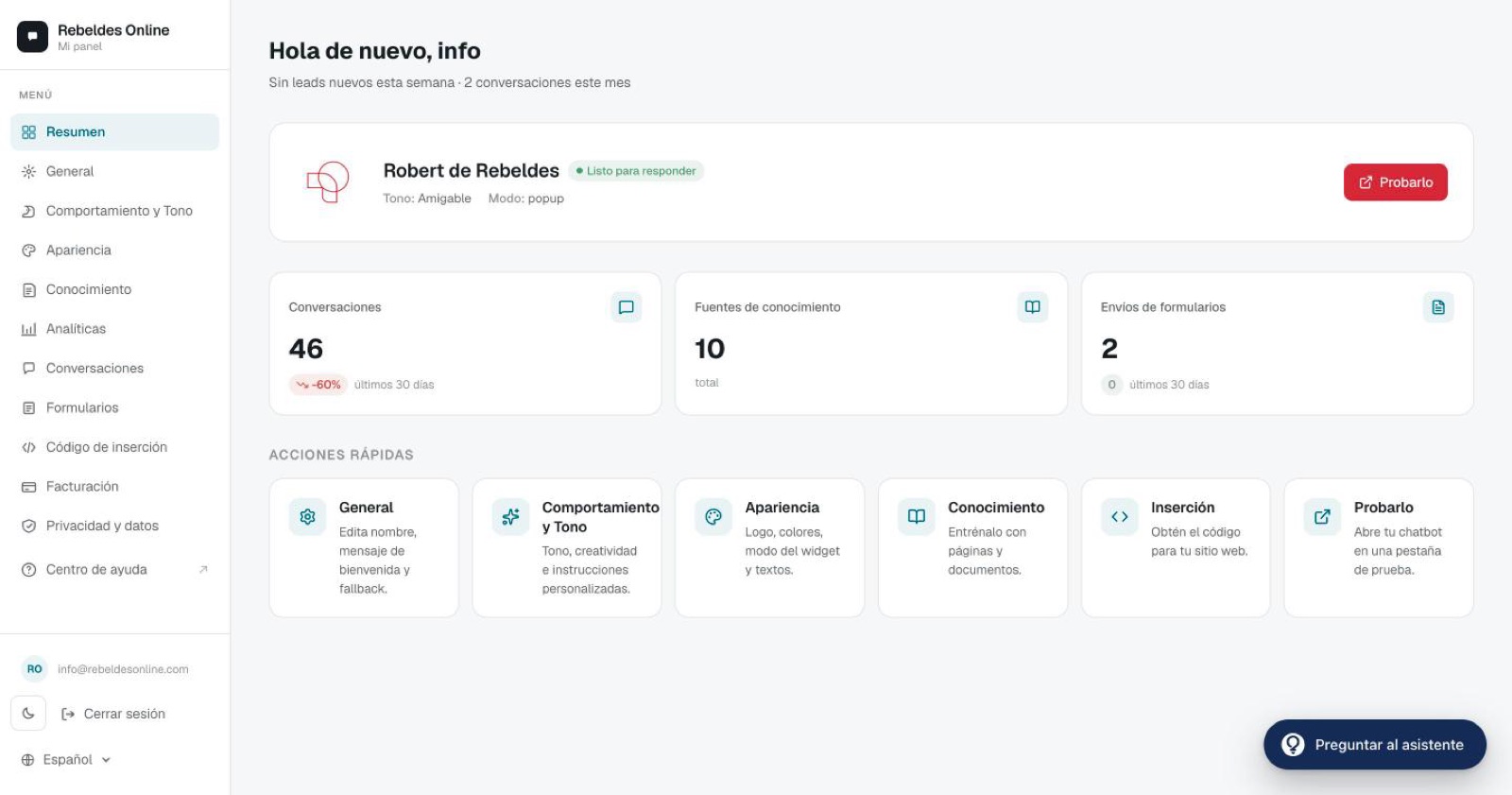
The dashboard sections
The left-hand menu lists every management area. Here's what each one does.
While you're getting your assistant going (until it knows your business and you've shared it), the Channels and Integrations groups in the menu start folded if you haven't connected anything in them yet: click the group's name to unfold it, and the menu remembers your choice in that browser. Website, the first row of Channels, is always visible, even when the group is folded, and it's on every plan. Anything you've already connected is always visible too. If a feature isn't included in your plan, its row names the plan that includes it (for example Pro); click it to see what it offers and how to turn it on.
While you're getting your assistant going, every page shows the Get started guide on the right, with 8 steps: personalize your assistant, add knowledge, tune behaviour and tone, customize appearance, create your first form, have your first conversation, explore channels and integrations, and check your stats. Each step takes you to its section (the first-conversation step opens your assistant in a new tab) and ticks itself off when you complete it. Minimize turns the guide into a tab on the right edge, Get started, with the percentage complete (on a phone, just the percentage); click it to open the guide again. Skip tutorial hides it for good for your account in that browser, and it disappears on its own once you complete all 8 steps.
Overview
Your home page. At the top you see your assistant's real status: whether it still doesn't know your business or is reading your website, whether it still needs testing or sharing, or how many conversations it has had in the last 30 days; if you've gone over your plan's conversation limit, it tells you it's paused. Your customer link and the code for your website aren't here but in Website (more on it below); when sharing your assistant is the next step, the status links you to that page. Once you have conversations, you also see your numbers (conversations, leads, form submissions and knowledge sources), recent activity and shortcuts to the most common tasks. The Try it button opens your assistant in a new tab so you see exactly what a visitor sees. If you already have channels or integrations connected, the Connections card shows each one with a green, amber or red dot and the reason — only the ones you have connected.
Behaviour & Tone
This is where you shape the assistant's personality and how it reasons: custom instructions, tone (friendly, formal or technical), creativity (from 0.1 very precise to 1.0 very creative; for support, the sweet spot is between 0.5 and 0.7) and the time zone, right above the opening hours. Full details in Behaviour & Tone.
Appearance
Your assistant's identity and everything visual:
- Assistant name — shown in the header of the chat window.
- Welcome message — the first line a visitor reads when they open the chat.
- Fallback message — what it replies when it can't find an answer in its knowledge.
- Assistant and launcher icons, widget mode (Popup or Inline, chosen only here), position, window size, colors, subtitle and placeholder, avatar, auto-open and suggested questions.
More in Appearance.
Knowledge
Your assistant's source of truth. You can add web pages (including their subpages) and files (PDF, DOCX, TXT, CSV). Important: the assistant only answers using this information. Learn how to manage it in The knowledge base.
Analytics
Performance at a glance: conversations per day, messages, forms, CSAT, traffic source and activity peaks. On the Pro plan you also get an AI assistant that answers questions about your metrics in plain language.
Conversations
The full chat history. You can open and read each conversation one by one, and download them as CSV on every plan to analyze them outside the platform: from Analytics, a summary per conversation; with the full text, from Privacy & data → Download my data.
Forms
Questionnaires the assistant launches automatically when it detects certain keywords (a quote request, for example). You can start from a template (group bookings, request an appointment, contact / quote, events & catering or job application) or from scratch. The data lands in your inbox and is listed here too. This section also holds Notification emails: the address (or addresses) those emails go to. Below it, a card takes you to Google Calendar if you'd rather the assistant confirmed appointments on the spot. Full guide in Forms.
Google Calendar
This is where you connect your Google Calendar (Basic plan or higher) and turn on The assistant books into your calendar (Settings tab), so the assistant checks your real availability and confirms the appointment on the spot, straight into your calendar. On the Appointments tab you see the appointments it takes in the chat, with each customer's details. Full guide in Bookings with Google Calendar.
The status of your WhatsApp Business channel (Pro and E-commerce plans): your connected number and its display name. You make the connection yourself from the dashboard — step by step in Connect WhatsApp Business.
The status of your Instagram DM channel (Pro and E-commerce plans): the connected account. You make the connection yourself from the dashboard — step by step in Connect Instagram DMs.
Messenger
The status of your Facebook Messenger channel (Pro and E-commerce plans): the connected Facebook Page. You make the connection yourself from the dashboard — step by step in Connect Facebook Messenger.
Telegram
The status of your Telegram channel (Pro and E-commerce plans): your business's connected bot and its t.me link. You make the connection yourself from the dashboard by pasting the @BotFather token — step by step in Connect Telegram.
Website
The first row of Channels, on every plan: everything that used to be in Install & share is here now. At the top, the Your customer link card (it used to be on the Overview too; now it's only here): your link with Copy and Open, Customize the link under your link to rename it (the old one keeps working and points to the new one, so a QR code you've already printed still works) and, once your assistant knows your business, Share on WhatsApp, Install on your website, Download QR (a PNG image, or For print, as SVG) and ready-to-paste texts for Instagram, Google and WhatsApp Business. If you shared your link from another phone or computer, click I've already shared it in that same card. Below, under Install on your website, the snippet you paste into your site to display the assistant (with an alternative iframe if you prefer), ready for the mode you chose in Appearance (Popup or Inline; it's shown above the code, with a link to change it there), and your allowed domains, with their own Save button. Step-by-step setup in Install the widget on your site; sharing the link, in Share your assistant link.
Billing
Change plan, download invoices and manage your subscription through the Stripe portal. Everything related in Plans & billing.
Saving your changes
In Behaviour & Tone, Appearance and Forms, as soon as you change something a bar appears at the bottom with Discard and Save changes. It confirms "Changes saved" or, if something goes wrong, tells you why and keeps your changes so you can press Retry. If you try to leave the page with unsaved changes, it asks first. The Notification emails card in Forms has its own Save button, and it also warns you if you leave without saving.
A recommended walkthrough
Setting up an assistant for the first time? This order saves you the back-and-forth:
- Knowledge — add what it needs to know.
- Behaviour & Tone — tune how it replies.
- Appearance — give it a name and messages, and match the look to your brand.
- Website — install it on your site or share your customer link.
- Analytics & Conversations — measure and refine over time.
Want a hand getting started?
Open the ChatME Assistant right inside the dashboard and ask it anything about these sections — it guides you in real time. And if you'd rather we show you live, book a demo and we'll go through it together.
Ask the ChatME Assistant
It's in your dashboard and knows every step. Or book a demo and we'll set it up with you.